
All guides
- Install on macOS
- Install on Windows
- Install on Linux
- Getting started
- Your first scene
- Chat, overlays and alerts
- Going live
- Streaming to Velora with VELoQ
- Recording and the replay buffer
- Transitions and studio mode
- Screenshots
- Automations and hotkeys
- Themes and Theme Studio
- Stream Deck, Touch Portal and Companion
- Face tracking with Velum Avatars
- Updates
- Velum Gauges
- Games and what you need
- Forza Horizon 4, 5 and 6
- Forza Motorsport
- F1 23, F1 24 and F1 25
- American Truck Simulator and Euro Truck Simulator 2
- X-Plane 11 and 12
- Microsoft Flight Simulator 2020 and 2024
- Two PCs: gaming and streaming
- When Velum Gauges hears nothing
Guides › Get started
Chat, overlays and alerts
Read every platform's chat in one panel, and put chat and alerts on your stream.
Velum Studio reads chat from every platform you connect and puts it in one Chat panel. A Chat overlay layer puts it on your stream, drawn by Studio itself, with no browser source to set up. The same layer, set up as alerts, shows follows, subscriptions and raids.
The Chat panel
Chat starts when you add a platform (see Going live); where a platform offers it, sign in when you add it to bring its chat and events. Studio reads chat from Twitch, YouTube, Kick, Velora, Owncast and Rumble (Rumble's chat is read-only).
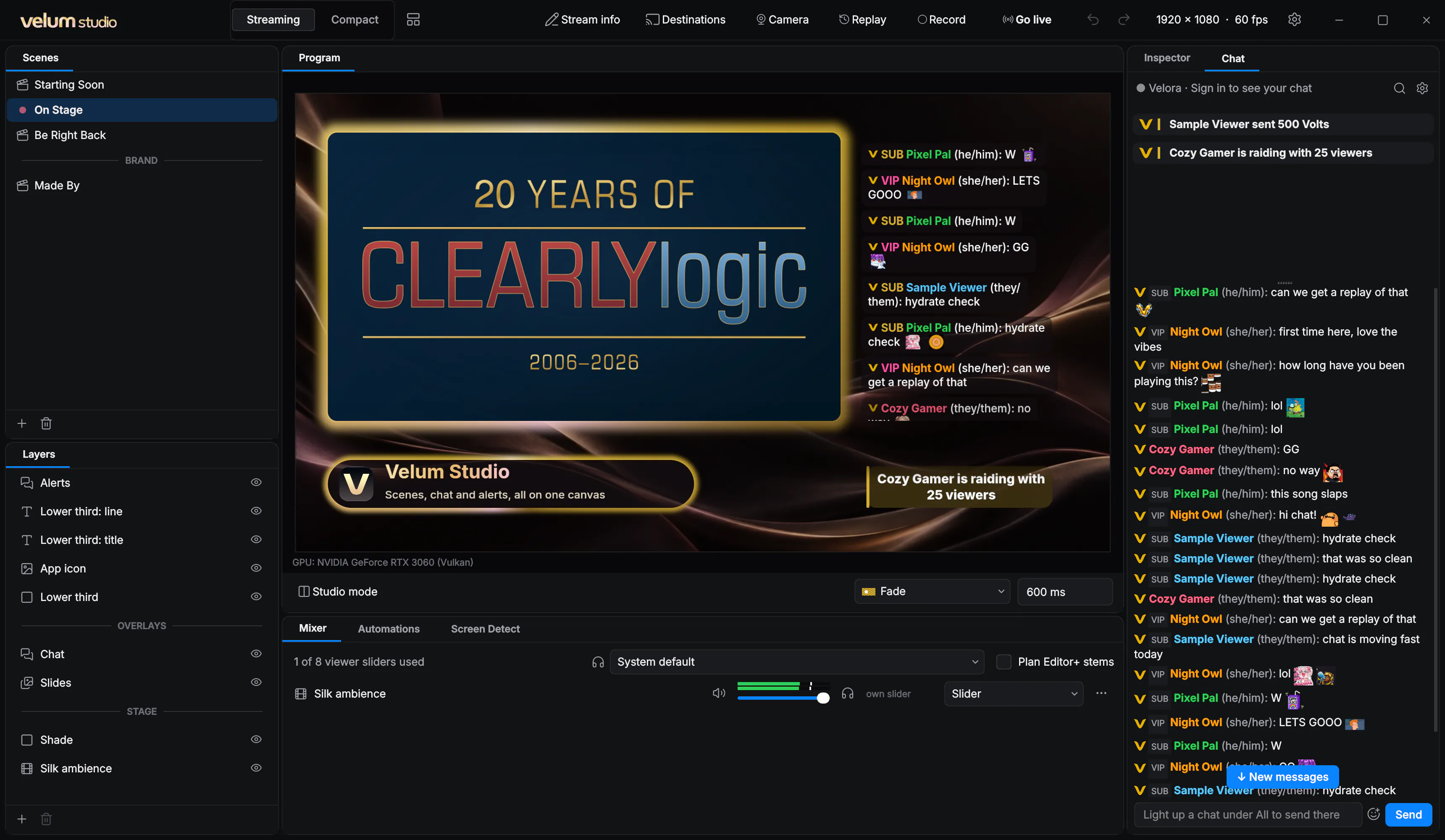
- All shows every platform together, with a tab for each. Under All, Sends to lights up the chats a message you type goes to.
- Right-click a message to Reply, Pin message, Delete message, Time out or Ban… someone, copy it, or Show on stream as a featured message.
- Chat modes: Slow mode, Followers only, Subscribers only and Emote only, where the platform has them.
- Search chat finds messages and names. Chat settings has text size, times, alternating backgrounds, a Split activity feed, and 7TV, BTTV and FFZ emotes.
Put chat on your stream
- In Layers, click + › Chat overlay.
- Place and size it like any layer.
- In the Inspector, pick a Theme: Bubbles, Over gameplay, Panel, Big and bold, Alerts or Minimal.
- Then change anything: the look (Bubbles, Lines or Panel), font, weight, text size, colors, corners, spacing, order, alignment, how long messages stay, how they come in, and emote size.
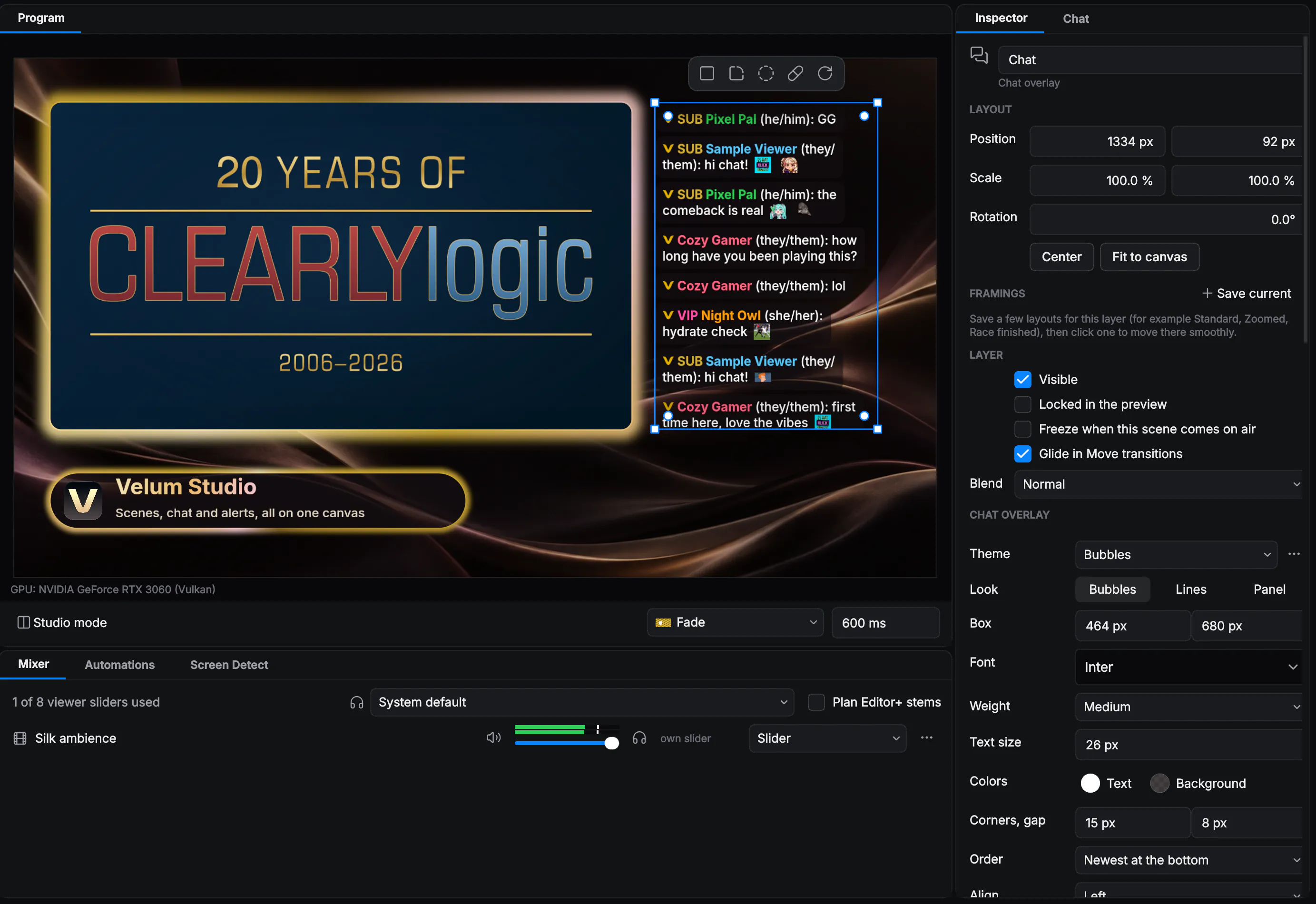
Under Shows, choose what appears: chat messages, events, platform marks, roles, pronouns, the featured message, and whether to hide !commands and bots. You can color names by role and set a minimum for support to show.
Save your look with Save as theme…, and share it with Export this look… (a .velumchat file) or Import theme….
Alerts
Add another Chat overlay and choose the Alerts theme. It shows events only, one at a time, centred, popping in. Make each kind of alert your own:
- Alert sound and Alert picture: one for everything, or different ones for follows, subscriptions, support (Volts, bits, KICKs), redemptions and raids. Picture height sets how tall the picture shows.
- Alert words…: what each kind of alert says, with
{name},{amount},{months}and{reward}filled in for you.
Design before anyone chats
Send a test puts a sample Chat message, Follow, Subscription, Volts, Redemption or Raid in your overlays and the Chat panel. Simulate busy chat (30 s) and Simulate a raid flood (15 s) show how they hold up when it's busy. Nothing is sent to any platform, but if you're live, viewers see the samples, so test before you go live.