
All guides
- Install on macOS
- Install on Windows
- Install on Linux
- Getting started
- Your first scene
- Chat, overlays and alerts
- Going live
- Streaming to Velora with VELoQ
- Recording and the replay buffer
- Transitions and studio mode
- Screenshots
- Automations and hotkeys
- Themes and Theme Studio
- Stream Deck, Touch Portal and Companion
- Face tracking with Velum Avatars
- Updates
- Velum Gauges
- Games and what you need
- Forza Horizon 4, 5 and 6
- Forza Motorsport
- F1 23, F1 24 and F1 25
- American Truck Simulator and Euro Truck Simulator 2
- X-Plane 11 and 12
- Microsoft Flight Simulator 2020 and 2024
- Two PCs: gaming and streaming
- When Velum Gauges hears nothing
Guides › Go live and record
Transitions and studio mode
Choose how scenes change, and set up the next scene before it goes on air.
The transition bar under the Program sets how one scene changes into the next. Studio mode lets you get the next scene ready while the current one stays on air.
Choose a transition
Click the transition picker under the Program. Every transition is shown as it plays, so you can see it before you choose it. Set how long it takes in the box beside it (up to 20 seconds). A new collection starts with a 300 ms Fade.
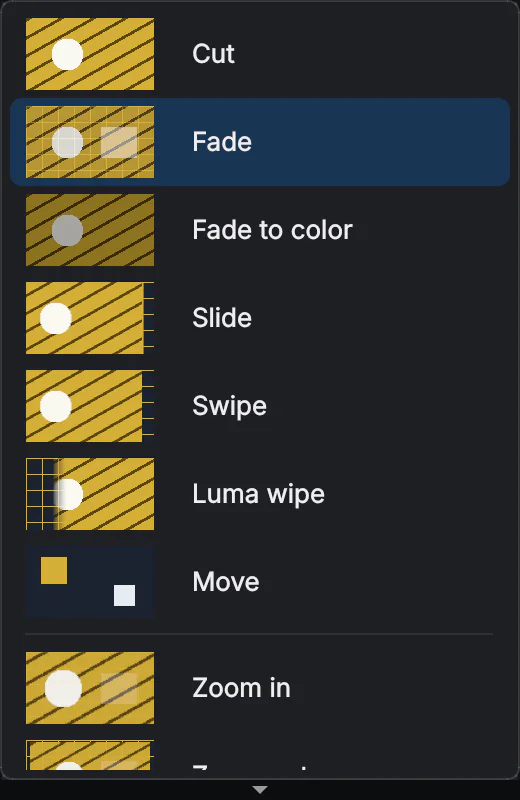
| Types | Cut, Fade, Fade to color, Slide, Swipe, Luma wipe and Move, where layers in both scenes glide from where they were to where they're going. |
|---|---|
| Effects | Zoom in, Zoom out, Blur, Spin blur, Pixelate, Swirl, Ripple, Glitch, Dissolve, Directional wipe, Clock wipe, Iris, Barn doors, Blinds, Checkerboard, Page curl, Cube, Flip, Luma burn, Sliding bars and Color shift. |
| Your own | Stinger…: a video (.mov, .webm, .mp4 or .mkv) that plays over the change; you say how far into it the scenes switch. Custom shader…: a .wgsl shader file. Transitions you save show up in the picker. |
A Cut has no length, and a stinger lasts as long as its video.
A different transition into one scene
Right-click a scene in Scenes › Transition into this scene. Choose any type or effect, a saved transition, or Duration. That scene always comes on air that way; every other scene uses the default.
In Move transitions, a layer glides only if Glide in Move transitions is on in its Inspector (it is to start with).
Studio mode
- Click Studio mode under the Program. The Program splits in two: Preview: edits happen here on the left, Program: on air on the right.
- Click a scene in Scenes. It opens in the preview, not on air. Change it as much as you like.
- Press Take. The preview goes on air with the transition, and what was on air becomes the preview.
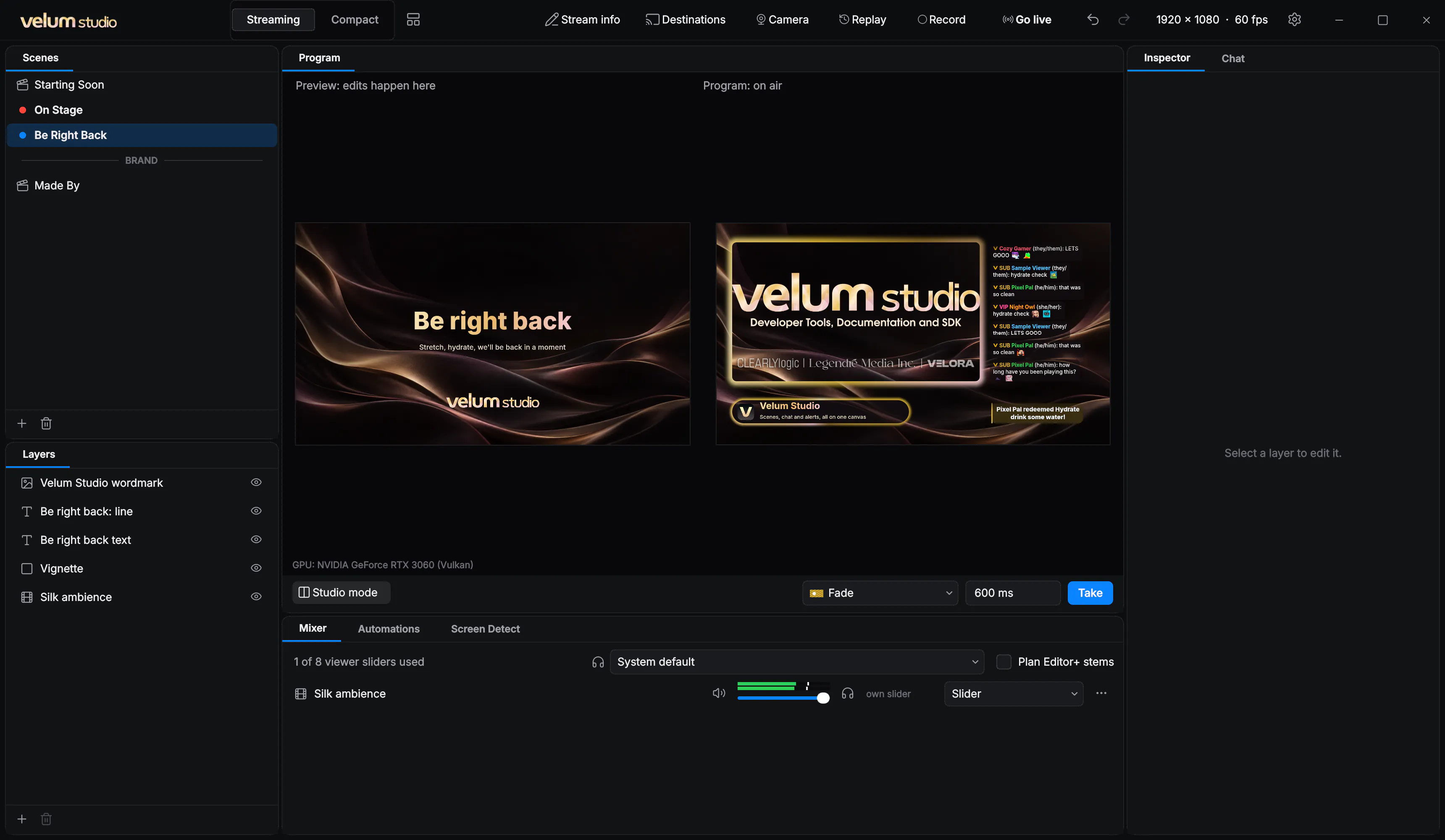
Click Studio mode again to turn it off.